
Religion Wallpapers
Download and tweet 250 000+ stock photo wallpapers for free in Religion category. ✓ Thousands of new images daily ✓ Completely free ✓ Quality images from MetroVoice
 14th Dalai Lama
 Ahisma Hand
 Allah
Allah Alpha And Omega
 Arjuna
 Atheism
 Bahá'í
 Bible
Bible Buddha
 Buddhism
 Christian
 Christian Cross
 Christianity
 Christograms
 Church
 Crossed Keys
 Crucifix
 David Star
 Dharma
 Dreidel
 Endless Knot
 Fleur De Lis
 Hanuman
 Hindu
Hindu Hinduism
 Ichthys
 INRI
INRI Islam
Islam Islamic
 Jehovah's Witnesses
 Jesus
Jesus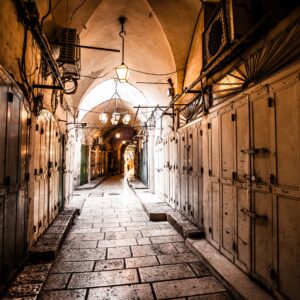 Jewish
 Judaism
 Khanda
 Krishna
 Lingam
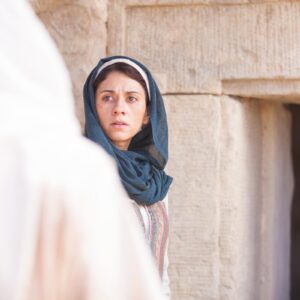 Mary Magdalene
 Mecca
Mecca Menorah
 Milarepa
 Monotheism
 Moses
Moses Muslim
 Nine-pointed Star
 Pope Francis
 Pope John Paul II
 Prophet Abraham
 Quran
Quran Sai Baba
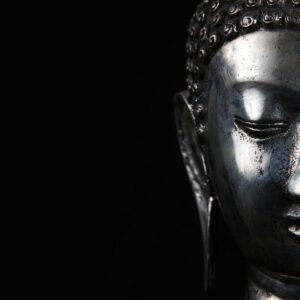 Sangha
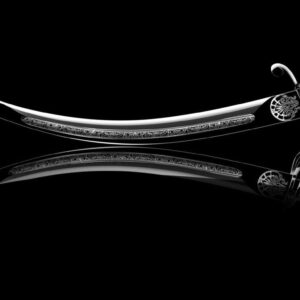 Sikhism
 Spiritism
 Sri Ramachandra
 Temple
 The Star And Cresent
 Torii Gate
 Triquetra
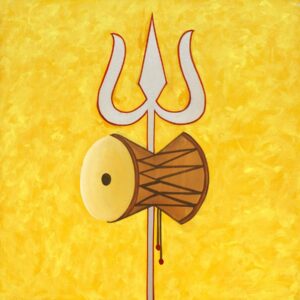 Trishula
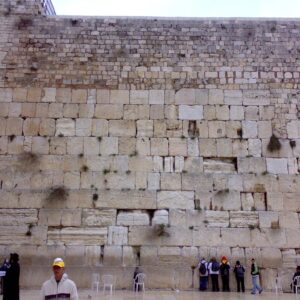 Wailing Wall
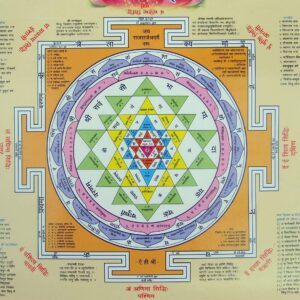 Yantra
 Yin And Yang
About collection
This collection presents the theme of Religion. You can choose the image format you need and install it on absolutely any device, be it a smartphone, phone, tablet, computer or laptop. Also, the desktop background can be installed on any operation system: MacOX, Linux, Windows, Android, iOS and many others. We provide wallpapers in all popular dimensions: 512x512, 675x1200, 720x1280, 750x1334, 875x915, 894x894, 928x760, 1000x1000, 1024x768, 1024x1024, 1080x1920, 1131x707, 1152x864, 1191x670, 1200x675, 1200x800, 1242x2208, 1244x700, 1280x720, 1280x800, 1280x804, 1280x853, 1280x960, 1280x1024, 1332x850, 1366x768, 1440x900, 1440x2560, 1600x900, 1600x1000, 1600x1067, 1600x1200, 1680x1050, 1920x1080, 1920x1200, 1920x1280, 1920x1440, 2048x1152, 2048x1536, 2048x2048, 2560x1440, 2560x1600, 2560x1707, 2560x1920, 2560x2560
How to install a wallpaper
Microsoft Windows 10 & Windows 11
- Go to Start.
- Type "background" and then choose Background settings from the menu.
- In Background settings, you will see a Preview image. Under
Background there
is a drop-down list.
- Choose "Picture" and then select or Browse for a picture.
- Choose "Solid color" and then select a color.
- Choose "Slideshow" and Browse for a folder of pictures.
- Under Choose a fit, select an option, such as "Fill" or "Center".
Microsoft Windows 7 && Windows 8
-
Right-click a blank part of the desktop and choose Personalize.
The Control Panel’s Personalization pane appears. - Click the Desktop Background option along the window’s bottom left corner.
-
Click any of the pictures, and Windows 7 quickly places it onto your desktop’s background.
Found a keeper? Click the Save Changes button to keep it on your desktop. If not, click the Picture Location menu to see more choices. Or, if you’re still searching, move to the next step. -
Click the Browse button and click a file from inside your personal Pictures folder.
Most people store their digital photos in their Pictures folder or library. -
Click Save Changes and exit the Desktop Background window when you’re satisfied with your
choices.
Exit the program, and your chosen photo stays stuck to your desktop as the background.
Apple iOS
- To change a new wallpaper on iPhone, you can simply pick up any photo from your Camera Roll, then set it directly as the new iPhone background image. It is even easier. We will break down to the details as below.
- Tap to open Photos app on iPhone which is running the latest iOS. Browse through your Camera Roll folder on iPhone to find your favorite photo which you like to use as your new iPhone wallpaper. Tap to select and display it in the Photos app. You will find a share button on the bottom left corner.
- Tap on the share button, then tap on Next from the top right corner, you will bring up the share options like below.
- Toggle from right to left on the lower part of your iPhone screen to reveal the "Use as Wallpaper" option. Tap on it then you will be able to move and scale the selected photo and then set it as wallpaper for iPhone Lock screen, Home screen, or both.
Apple MacOS
- From a Finder window or your desktop, locate the image file that you want to use.
- Control-click (or right-click) the file, then choose Set Desktop Picture from the shortcut menu. If you're using multiple displays, this changes the wallpaper of your primary display only.
If you don't see Set Desktop Picture in the shortcut menu, you should see a submenu named Services instead. Choose Set Desktop Picture from there.
Android
- Tap the Home button.
- Tap and hold on an empty area.
- Tap Wallpapers.
- Tap a category.
- Choose an image.
- Tap Set Wallpaper.